How to use LeadTruffle Scheduling (Beta)
Overview
Many LeadTruffle users love our AI texting and AI voice features, but manage scheduling through third-party tools like Calendly. With our new Scheduling Beta, you can now manage bookings natively within LeadTruffle—no third-party tools required.
Why It Matters
- Centralizes scheduling within LeadTruffle
- Enables your AI agent to suggest and book appointments based on real-time availability
- Reduces back-and-forth and missed opportunities
How to Get Started
- Click Scheduling on the left sidebar in your LeadTruffle dashboard (note: this is a beta feature).
- Sync with Google Calendar
- Syncing with Google Calendar is optional but highly recommended.
- This ensures compatibility with external CRMs and keeps your availability accurate.
- After syncing, refresh the page—LeadTruffle will automatically mark your busy/free time slots.
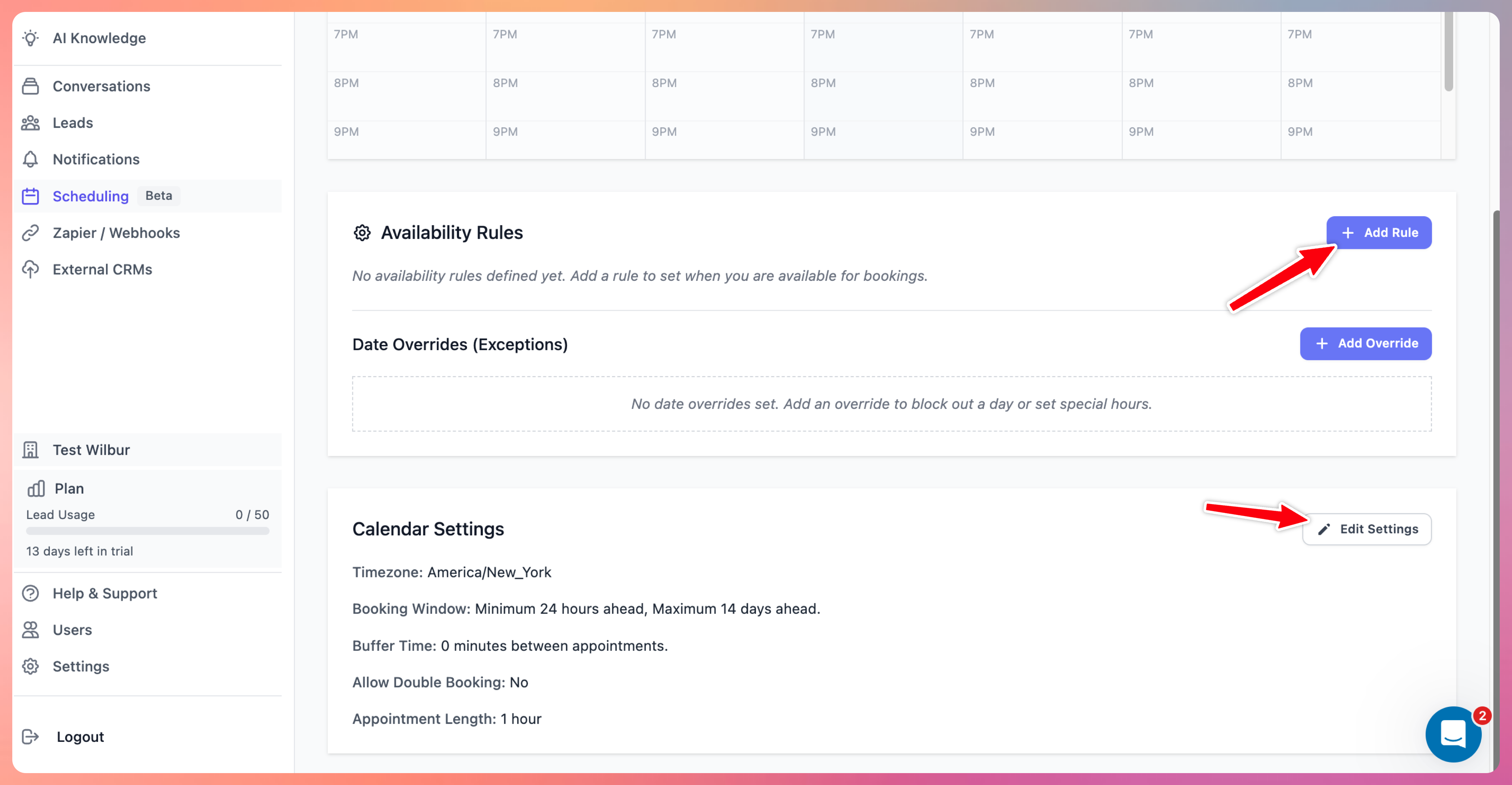
- Set Your Availability
- Configure general availability rules (e.g., business hours, days off).
- Use Date Overrides for exceptions (vacations, holidays, etc.).
- Adjust Calendar Settings
- Set time zone, appointment length, buffer time between appointments
- Define how soon someone can book (book-ahead hours) and how far in advance (max book-ahead days)
- Customize the public-facing calendar name
AI Calendar Integration
Your AI agent can now suggest appointments and send booking links to leads automatically.
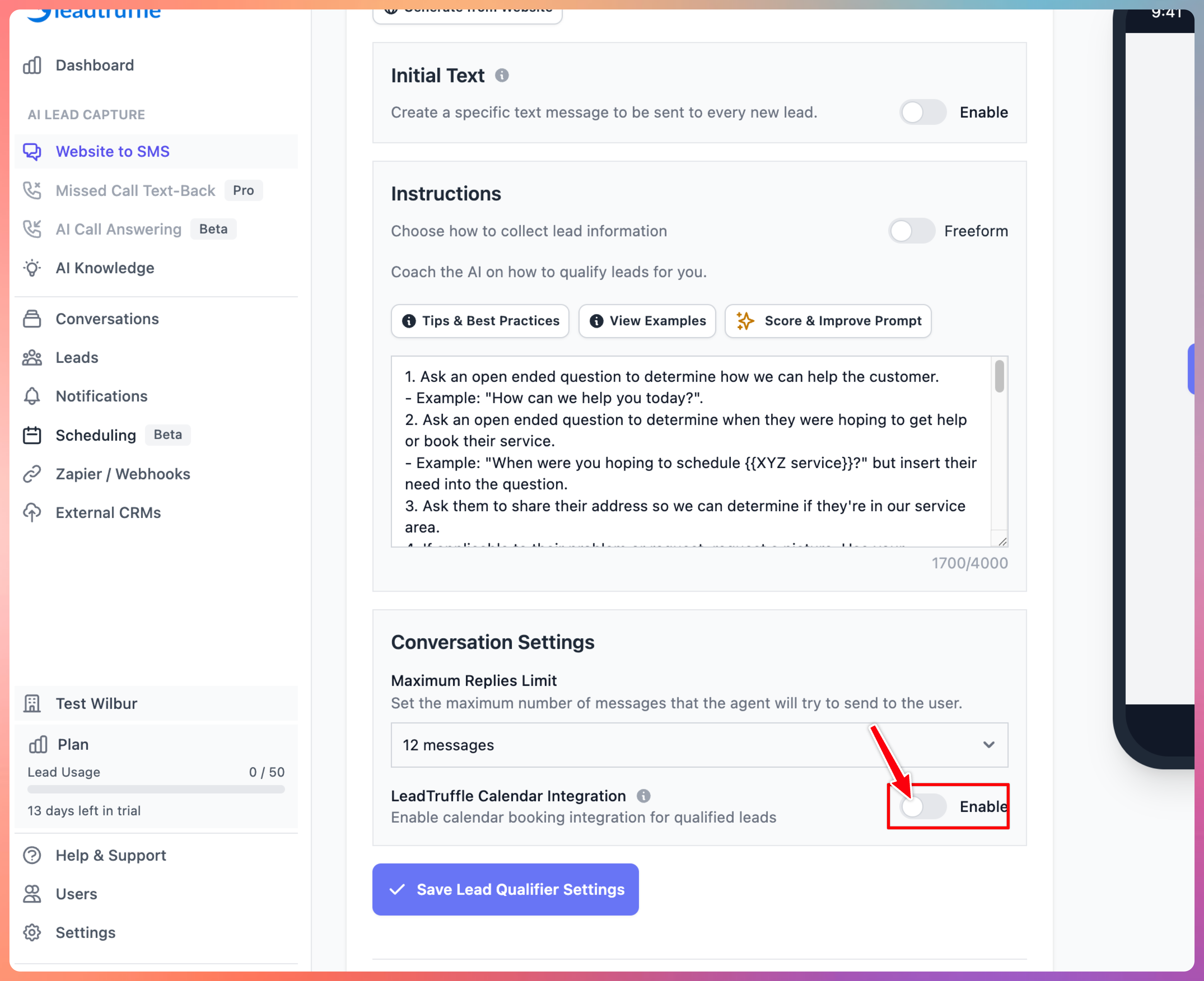
- Go to Lead Qualifier > Website Texting Prompt
- Turn ON the “Use LeadTruffle Calendar” option
- When it’s time to book, the AI will:
- Detect your real-time availability
- Send your unique LeadTruffle booking link
- Let the user choose a time and enter their email
Booking Link Options
Option 1: Use Your Own Booking Link
- Turn OFF the LeadTruffle Calendar setting
- Paste your external booking link (e.g., Calendly) into the AI agent instructions
Option 2: Use LeadTruffle Calendar
- Turn ON the setting
- Configure everything under Scheduling first
- Let the AI handle the rest!
___________
Need help? Contact us at support@leadtruffle.com or message the team via the Intercom chat on this article or in-app.
Updated on: 02/04/2026
Thank you!