
How to set up Call Forwarding in DialPad
How to set up Call Forwarding in DialPad
📝 Forward your Dialpad number to LeadTruffle so every inbound call is captured and no lead ever slips through the cracks.
Table of contents
- Overview
- Before you start
- Option 1: Forward your Dialpad number from the dashboard
- Option 2: Forward a landline using a star code
- Adjust caller ID and answering settings
- Turn off call forwarding
- Troubleshooting
Overview
Call forwarding redirects incoming calls from your Dialpad number to another number, so calls get answered even when you're on a job, off the clock, or away from your desk. By forwarding your Dialpad line to your LeadTruffle number, every inbound call is captured and can trigger your automated follow-up — turning missed calls into booked jobs.
Dialpad lets you forward to up to five external numbers — mobile, landline, a teammate, or another team — and it's all managed from your account settings with no IT help needed.

Before you start
- You'll need a Dialpad number and access to Your settings in the Dialpad web dashboard or app.
- Have the number you want to forward to ready — this is typically your LeadTruffle number.
- Make sure you can answer that number during setup, since Dialpad verifies it with a quick confirmation call.
Option 1: Forward your Dialpad number from the dashboard
This is the recommended method and gives you the most flexibility.
- Log into your Dialpad account in a web browser or open the app.
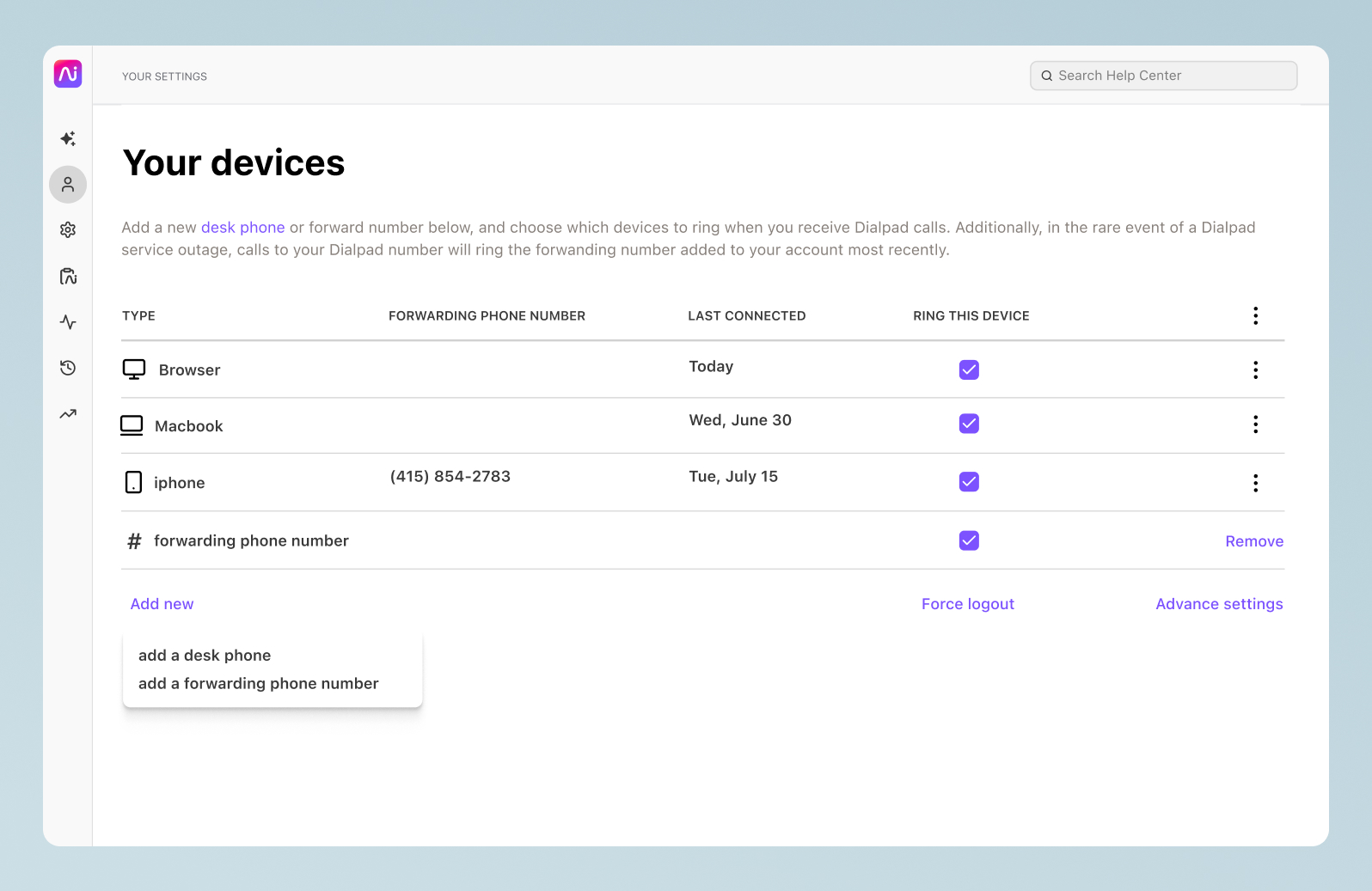
- Go to Your settings and select Your devices.
- Click Add new, then choose Add a forwarding number.
- Enter the number you want calls forwarded to (your LeadTruffle number) and click Verify.
- Dialpad will call that number. Answer it and press 1 to confirm it's working.
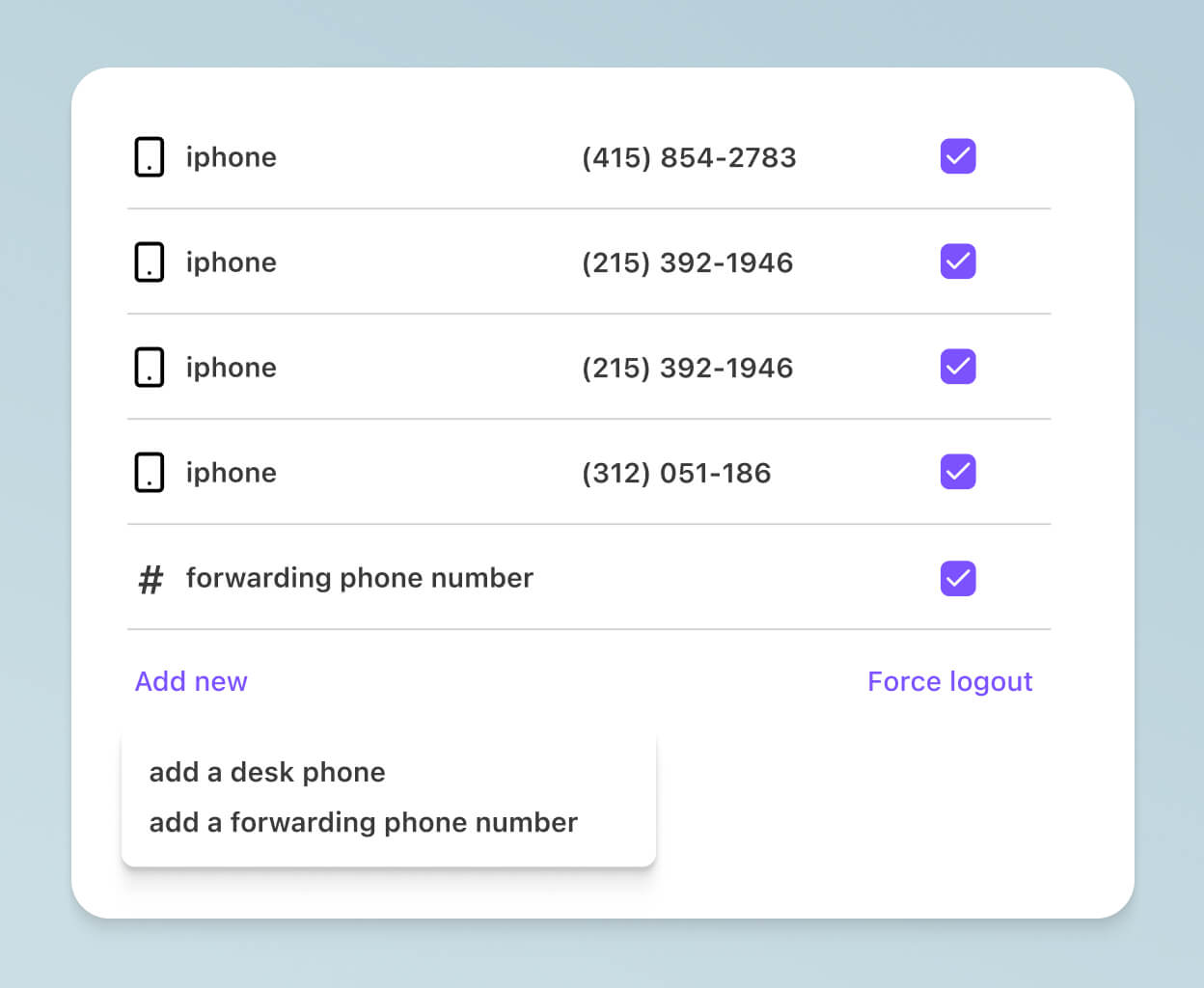
Repeat these steps to add more forwarding numbers — you can add up to five. You can toggle between the assigned numbers to choose which ones receive forwarded calls, and add or change numbers later whenever your setup changes.
Option 2: Forward a landline using a star code
If you're forwarding a traditional landline rather than a Dialpad number, most carriers support star codes. This activates forwarding directly from the phone line.
- Dial *72 from your landline and wait for the dial tone or confirmation tone.
- Enter the 10-digit number you want calls forwarded to (your LeadTruffle number).
- Press # or wait for confirmation that forwarding is active.
- To turn it off or change the number, dial *73 from the same line.
Adjust caller ID and answering settings
Once forwarding is set up, you can fine-tune how forwarded calls behave. From your dashboard, go to Your settings > Your devices > Advanced settings:
- Incoming caller ID — choose what shows on the receiving phone. You can display the original caller's number, or a label like your department name or "Dialpad," so you know a call was forwarded.
- Answer confirmation — add a prompt to press 1 on any forwarded call. This prevents forwarded calls from dropping into the wrong voicemail instead of reaching LeadTruffle.
- SMS forwarding — optionally forward text messages along with voice calls so you don't miss important texts.
Turn off call forwarding
To stop forwarding calls in Dialpad:
- Go to Your settings > Your devices.
- Find the forwarding number in your list of devices.
- Click Remove on the right-hand side of that number.
For a landline set up with a star code, simply dial *73 from the line to deactivate forwarding.
Troubleshooting
- Forwarded calls go to voicemail instead of LeadTruffle — enable the press-1 answer prompt under Advanced settings so the call waits for confirmation before connecting.
- The verification call never arrives — double-check the number was entered correctly and that the destination phone has service, then re-run the verification.
- Calls to a department aren't forwarding — forwarding applies to a user's own line. Calls routed to a department follow that department's routing rules, not individual forwarding settings.
- Desk phone forwarding won't turn off — if you enabled forwarding directly on a Yealink desk phone, it can only be disabled from the desk phone itself, not the dashboard.
Need help? Contact us at support@leadtruffle.com or message the team via the chat on this article or in-app.
Updated on: 09/07/2026
Thank you!