
How to use LeadTruffle Scheduling (Beta)
📝 Sync your calendar, let AI book real-time slots, and now cancel or reschedule appointments, all natively inside LeadTruffle.
Table of contents
- Overview
- Why use LeadTruffle Scheduling
- How to get started
- AI calendar integration
- Booking link options
- Canceling and rescheduling appointments
Overview
Many LeadTruffle users love the AI texting and AI voice features but manage scheduling through third-party tools like Calendly. With Scheduling (Beta), you can manage bookings natively inside LeadTruffle—no outside tools required. And now, your AI can also cancel and reschedule LeadTruffle calendar appointments automatically when a lead asks.
Why use LeadTruffle Scheduling
- Centralizes scheduling inside LeadTruffle
- Lets your AI agent suggest and book appointments based on real-time availability
- Lets your AI cancel and reschedule LeadTruffle calendar appointments on request
- Reduces back-and-forth and missed opportunities
How to get started
1. Navigate to Scheduling
Click Scheduling in the left sidebar of your LeadTruffle dashboard.
2. Sync with Google Calendar
Syncing is optional but highly recommended.
- Keeps your availability accurate and compatible with external CRMs
- After syncing, refresh the page—LeadTruffle will automatically mark your busy and free time slots
3. Set your availability
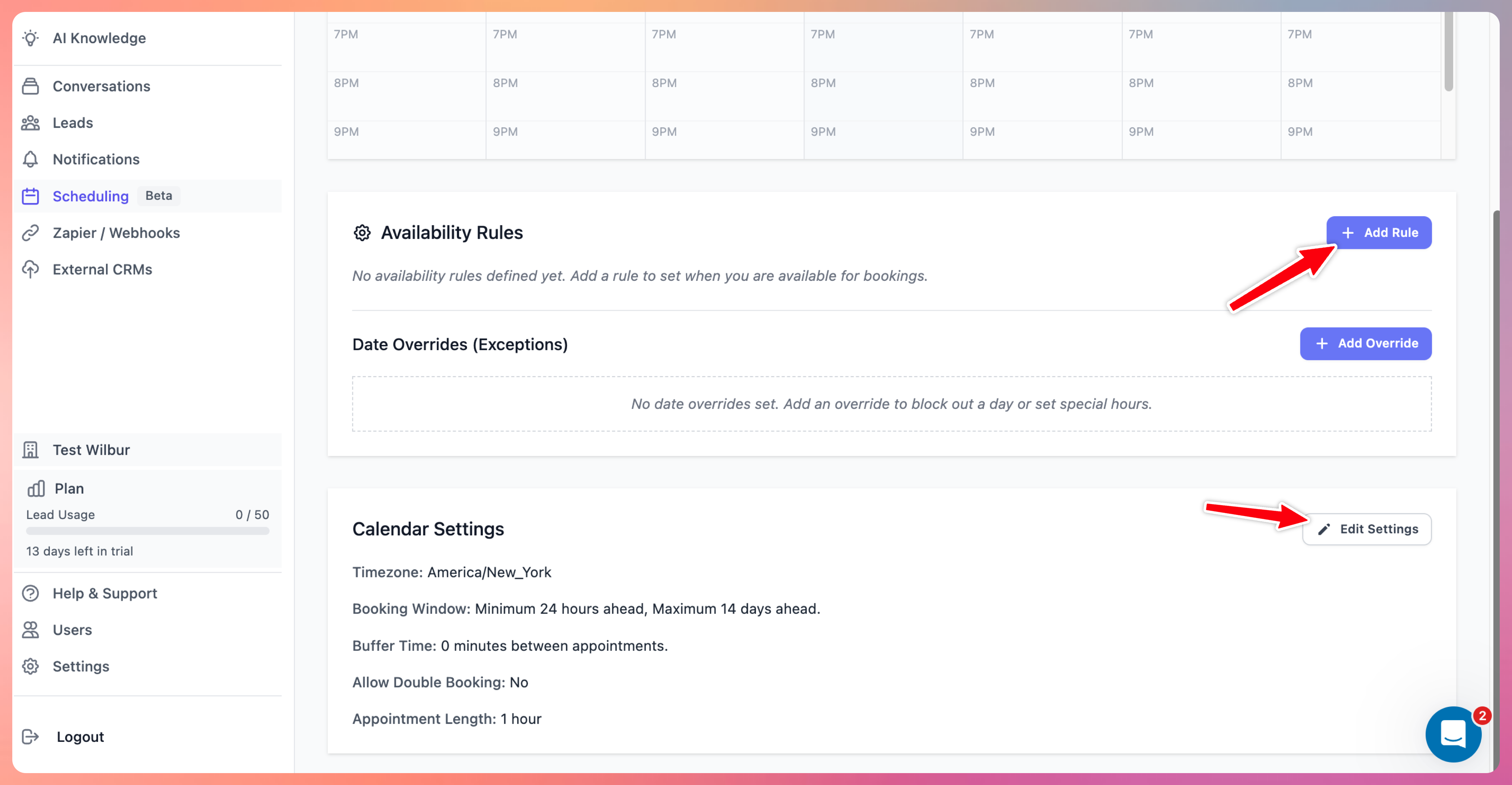
- Configure general availability rules (business hours, days off)
- Use Date Overrides for exceptions like vacations and holidays
4. Adjust calendar settings
- Set your time zone, appointment length, and buffer time between appointments
- Define how soon someone can book (book-ahead hours) and how far in advance (max book-ahead days)
- Customize the public-facing calendar name
AI calendar integration
Your AI agent can suggest appointments and send booking links to leads automatically.
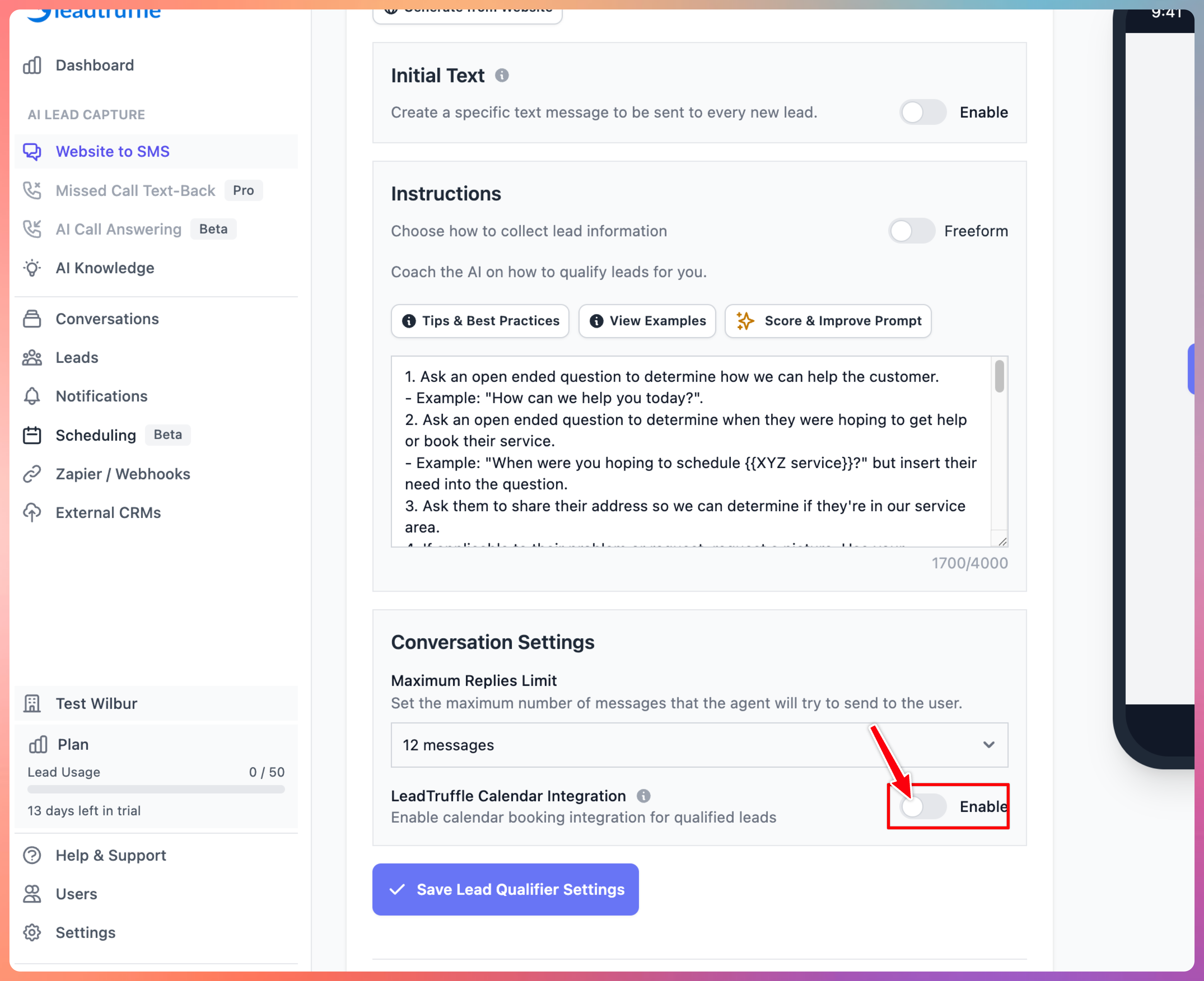
- Go to Lead Qualifier > Website Texting Prompt.
- Turn on Use LeadTruffle Calendar.
When it's time to book, the AI will:
- Detect your real-time availability
- Send your unique LeadTruffle booking link
- Let the lead choose a time and enter their email
Booking link options
Option 1: Use your own booking link
- Turn off the LeadTruffle Calendar setting
- Paste your external booking link (e.g. Calendly) into the AI agent instructions
Option 2: Use LeadTruffle Calendar
- Turn on the setting
- Configure everything under Scheduling first
- Let the AI handle the rest
Canceling and rescheduling appointments
LeadTruffle now recognizes when a lead asks to cancel or move an appointment mid-conversation—so they don't have to call in or start over.
For appointments booked on your LeadTruffle calendar, the AI handles the change directly:
- Cancels the appointment and frees up the time slot
- Reschedules to a new time based on your real-time availability
- Confirms the change back to the lead automatically
This works across every text-based channel:
- SMS and missed-call text-back
- Web Chat
- Inbound email and Google LSA email flows
- Thumbtack
- Yelp
Where to find these requests
Even when the AI handles the change, every cancel or move request stays visible so your team has full context:
- Scheduling page — an Appointment requests panel shows open requests
- Contact timeline — shows when a lead asked to cancel or move an appointment
- Conversation view — surfaces the request so staff know why the thread needs attention
After review, mark each request handled, declined, or superseded.
Notifications
Cancel and reschedule requests use your existing Appointment Created notification—there's no separate setting to configure.
- If you already receive appointment notifications, you'll receive these too
- Requests are deduplicated, so a lead repeating the same ask won't trigger duplicate alerts
Need help? Contact us at support@leadtruffle.com or message the team via the chat on this article or in-app.
Updated on: 02/07/2026
Thank you!